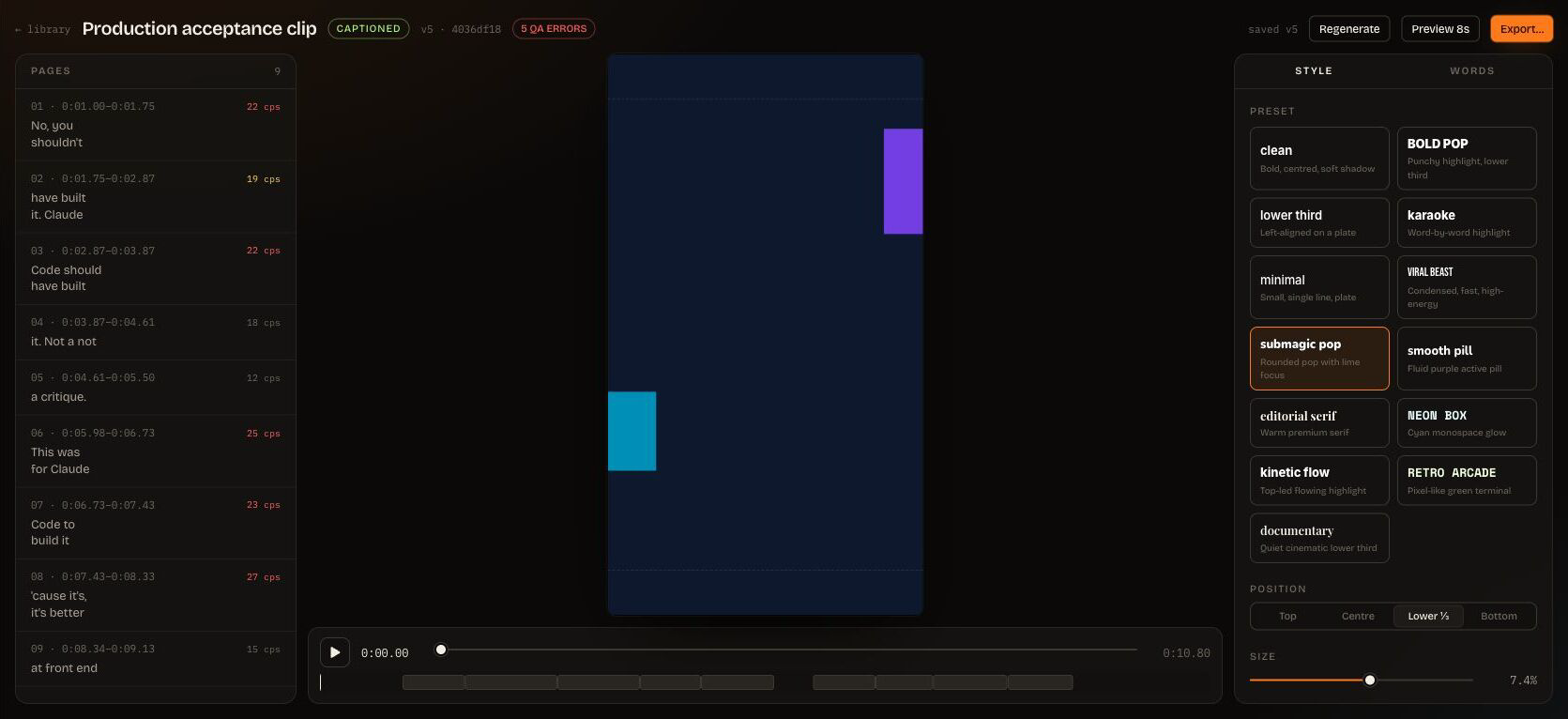
Open a captioned project and select Style.
Presets combine typography, colour, emphasis and motion into a ready-to-use starting point. Choose a preset based on the video rather than the thumbnail alone, then preview it on the actual clip.
Depending on the preset, ClipSubtitles can control:
font family, weight and size;
letter casing and alignment;
text, outline, shadow and plate colours;
active-word highlighting;
motion;
emoji timing, position, size and animation; and
safe caption placement.
The available style catalog is bounded so web and agent-created projects render the same way.
Use strong contrast against both bright and dark parts of the video.
Keep captions clear of faces, platform buttons and important on-screen text.
Avoid showing too many words at once.
Preview fast speech and scene changes, not only a quiet opening frame.
Check the final destination’s safe area before publishing.
Every saved style change creates a new project version. An old export quote no longer applies after the project changes, so request a fresh quote before exporting.